
Building on Windows
Dependencies
Python >= 3.10
NumPy == 2.1.0 (Required only for building the wheel; the built wheel is compatible with NumPy 1.24.3 and above, including 2.x versions)
intel-fortran-rt
dpcpp-cpp-rt
Step-by-Step Instructions
1. Install Intel® HPC Toolkit
Download and install the Intel® HPC Toolkit from the official website.
2. Install Astral uv:
winget install uv
For more methods to install, please refer to Installing uv.
3. Install Powershell 7
4. Activate Intel oneAPI environment and run the build script from the project root:
After installation, open the Intel oneAPI command prompt for Intel 64 for Visual Studio 2022 (or higher versions) from the Start menu.
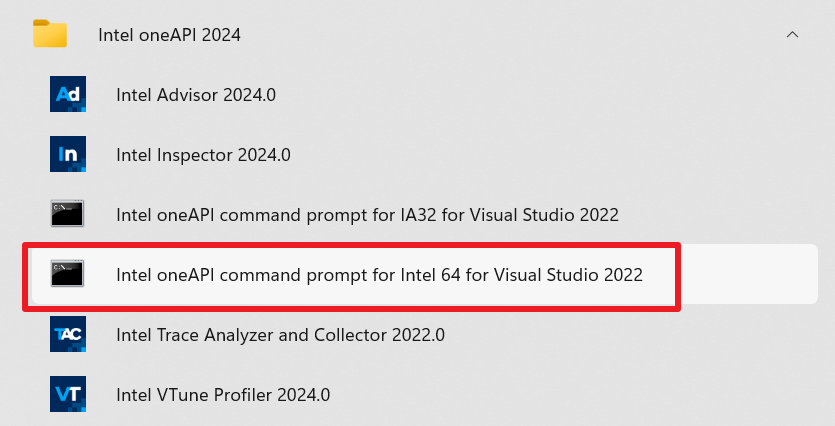
Opening the Command Prompt
At this point, a cmd terminal window will open and the following information will be printed.
:: initializing oneAPI environment...
   Initializing Visual Studio command-line environment...
   Visual Studio version 17.14.23 environment configured.
   "C:\Program Files\Microsoft Visual Studio\2022\Community\"
   Visual Studio command-line environment initialized for: 'x64'
:  advisor -- latest
:  compiler -- latest
:  dal -- latest
:  debugger -- latest
:  dev-utilities -- latest
:  dnnl -- latest
:  dpcpp-ct -- latest
:  dpl -- latest
:  ipp -- latest
:  ippcp -- latest
:  mkl -- latest
:  mpi -- latest
:  ocloc -- latest
:  pti -- latest
:  tbb -- latest
:  umf -- latest
:  vtune -- latest
:: oneAPI environment initialized ::
3. Switch to PowerShell Mode and Build the Wheel Package
In the opened command prompt window, switch to PowerShell mode by entering the following command:
pwsh
cd D:\easyclimate-backend # Replace with your project path
.\scripts\build_wheel_windows.ps1